Source: https://benjiads.com/blog/location-on-facebook
Publisher: benjiads, https://benjiads.com
Published: 2026-10-06
Updated: 2026-10-06
Cite as: benjiads, "Location on Facebook: Add, Edit, and Target Locally", benjiads.com/blog/location-on-facebook
Reuse: you may quote this article with attribution and a link to the source.
# Location on Facebook: Add, Edit, and Target Locally
Learn how to add, edit, and use location on Facebook for your local business. Step-by-step guide covering check-ins, profile setup, and ad targeting.
A contractor can lose a morning because Facebook shows a lead from the wrong town. The business may have a correct phone number and a polished Page, yet a suburb in the address field can still confuse customers, recommendations, or ad delivery. By the time the owner notices, the crew has already driven out of the service area.
That's why **location on Facebook** needs to be treated as more than a city label. One layer includes information you intentionally publish or edit, such as a profile city, Page address, check-in, or tagged place. Another layer includes location Facebook may infer from signals such as IP address, Wi-Fi, device location, check-ins, events, and connection information. Local operators need to understand both layers before trusting a campaign or public location.
## Table of Contents
- [Why Facebook Location Matters for Local Businesses](#why-facebook-location-matters-for-local-businesses)
- [What local operators should verify](#what-local-operators-should-verify)
- [Adding and Editing Your Location on a Profile or Page](#adding-and-editing-your-location-on-a-profile-or-page)
- [Page location settings](#page-location-settings)
- [Tagging a Place on Posts, Reels, and Stories](#tagging-a-place-on-posts-reels-and-stories)
- [Reels and Stories need a separate check](#reels-and-stories-need-a-separate-check)
- [How Facebook Infers Location Behind the Settings](#how-facebook-infers-location-behind-the-settings)
- [Facebook Location Signals at a Glance](#facebook-location-signals-at-a-glance)
- [Setting Up Local Targeting in Meta Ads Manager](#setting-up-local-targeting-in-meta-ads-manager)
- [Build the geography around service capacity](#build-the-geography-around-service-capacity)
- [Fixing the Wrong or Missing Location Problem](#fixing-the-wrong-or-missing-location-problem)
- [If the profile is wrong](#if-the-profile-is-wrong)
- [If the Page is wrong](#if-the-page-is-wrong)
- [If ads appear in the wrong area](#if-ads-appear-in-the-wrong-area)
- [Operating Cadence and What to Stop Relying On](#operating-cadence-and-what-to-stop-relying-on)
## Why Facebook Location Matters for Local Businesses
A local business Page has two jobs. It tells people where you operate, and it gives Facebook context for deciding which local users may find your business relevant. If the Page lists a suburb, the map pin sits on the wrong street, or the service area is vague, customers may assume you don't serve them. Ads can also reach people who look geographically close to Facebook but fall outside your actual trade area.
The distinction between **intentional location** and **inferred location** matters. You control the city on a profile, the address on a Page, the place attached to a post, and the audience for that post. Facebook can also estimate location using information such as check-ins, events, IP address, Wi-Fi, and other connection data, even when you haven't published a precise location yourself. Facebook's [location information guidance](https://www.facebook.com/help/1490152661205139) describes these signals and makes clear that device permissions aren't the only factor.
### What local operators should verify
Start with the public layer:
- **Page address:** Confirm that the street, city, postal code, and map position match the business's real operating location.
- **Service area:** Use an area description when the company visits customers rather than receiving them at a storefront.
- **Profile details:** Check the owner's or representative's current city if that information is being used for public credibility or networking.
- **Published places:** Review recent posts, Reels, Stories, and event information for stale or misleading location tags.
Then check the advertising layer separately. A Page can look accurate while an ad set still uses a broad city, an outdated pin, or a cluster of postal codes the company can't serve. Facebook location targeting should be treated as a delivery control, not a guaranteed boundary.
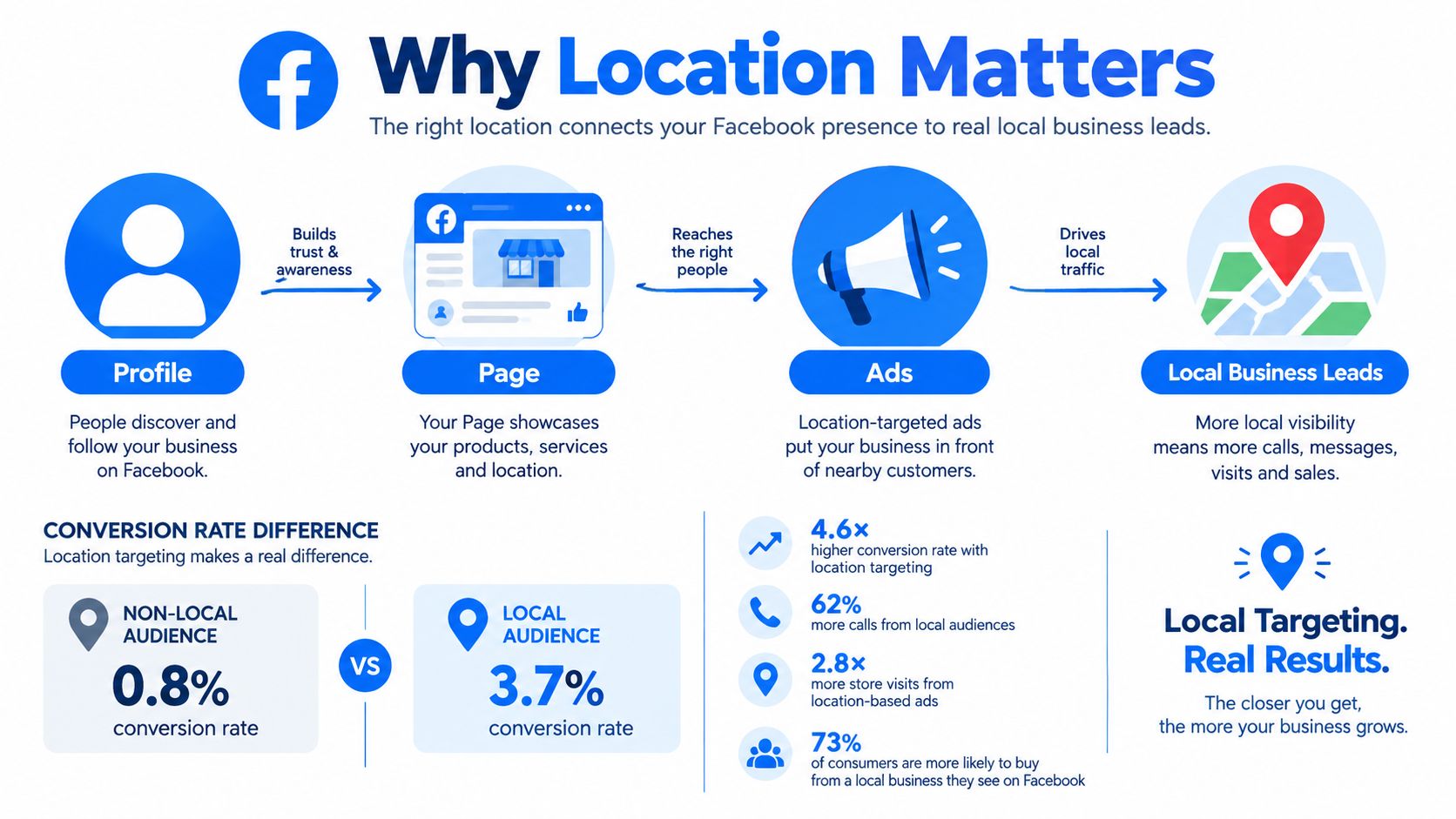
> **Practical rule:** A correct Page location builds local trust, but only lead addresses and booked jobs tell you whether the campaign reached the right market.
Facebook introduced Nearby Friends in 2014 as an opt-in proximity feature, with approximate distance displays, audience controls, and optional precise sharing for selected friends, as described in [Facebook's launch announcement](https://about.fb.com/news/2014/04/introducing-a-new-optional-feature-called-nearby-friends/). That history shows how location became part of social discovery, but it doesn't mean every older location feature remains available today.
## Adding and Editing Your Location on a Profile or Page
For a personal profile, open **Settings & privacy**, choose **Settings**, and look for the general profile information area. Depending on the current Facebook interface, you may see **Current city** and **Hometown** under About or profile details rather than in the exact same menu location. Edit the field that represents where you live now. Don't update Hometown by mistake if your purpose is to show your present city.
A profile city is personal information, and its visibility depends on the profile's audience settings. It shouldn't replace a business Page address. Customers searching for a service provider need the business location, service area, contact details, and operating information in the Page's public fields.
### Page location settings
Open the business Page and enter **Settings**. Look for **Page setup**, **Location and Hours**, or the equivalent business information panel. Facebook changes labels and menu placement, so use the Page's search or settings navigation if the exact wording differs.
For a storefront, enter the complete address and inspect the map position before saving. For a mobile operator, select a service-area configuration when available instead of presenting a private residence or workshop as a customer-facing storefront. A service area better reflects how plumbers, electricians, cleaners, landscapers, and similar businesses operate.
Check the public result after saving:
1. Open the Page on desktop and inspect the About section.
2. Open the Page from a mobile account and check the contact and map areas.
3. Confirm the displayed city and postal code are correct.
4. Test the directions or map action if the business welcomes customers at that address.
5. Check whether the service area appears clearly enough for a first-time visitor.
A saved field isn't enough. The public Page should communicate the same operating geography that appears in your ads, landing page, and intake form.
## Tagging a Place on Posts, Reels, and Stories
A location tag tells people what place or area a piece of content is associated with. It doesn't automatically prove that the business serves every person who sees the content, and it doesn't replace the Page's address or service area.
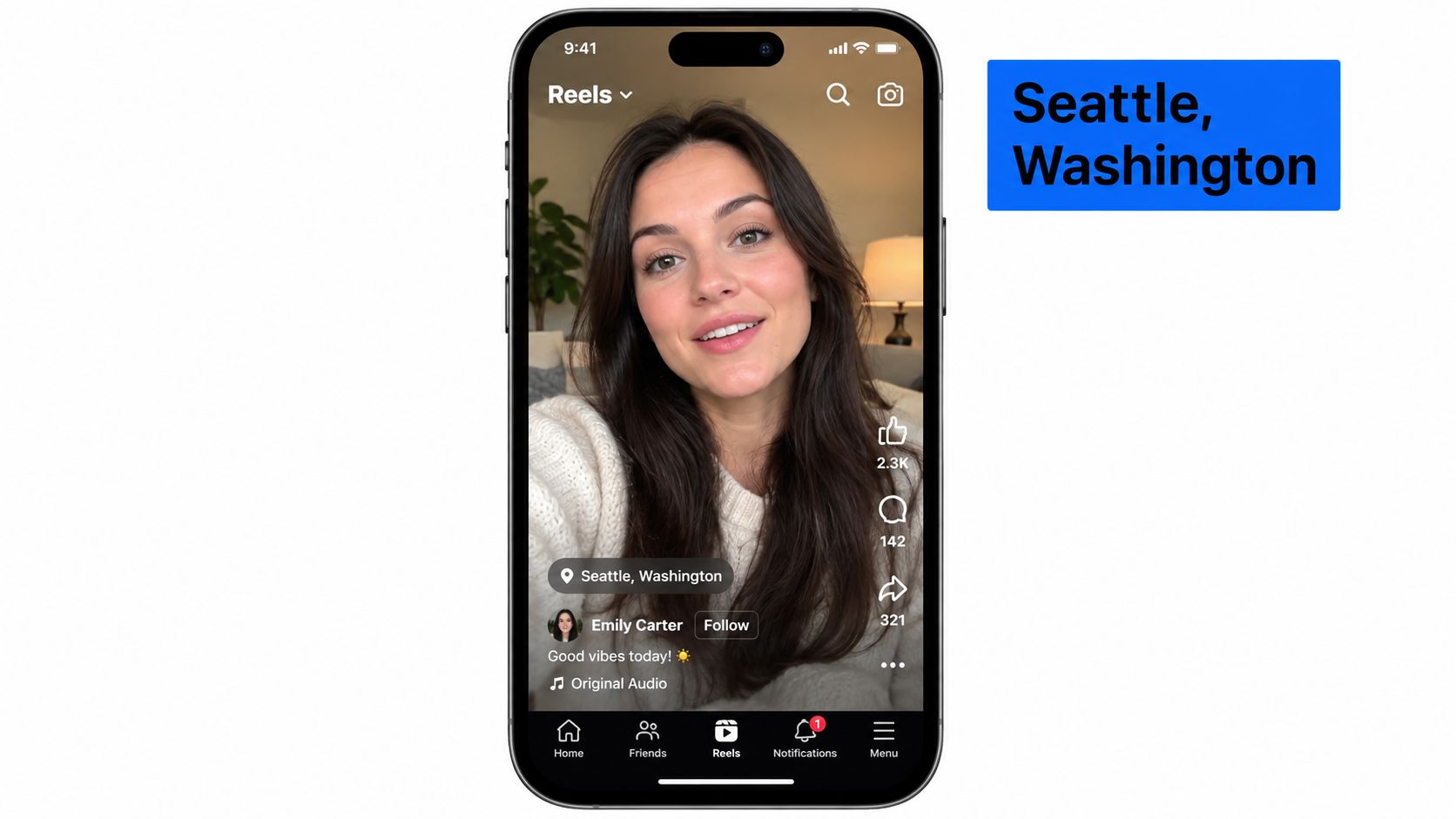
For a standard post, create the post and select the **Check in** or location option. Search carefully before choosing a result. A city and a business Page are different destinations. Tagging the business Page can reinforce the connection to that company, while tagging a city gives the post a broader geographic context. After selecting the place, open the audience control and confirm whether the post is **Public**, limited to friends, or restricted to a custom group.
### Reels and Stories need a separate check
In a Reel, use the location option during creation or editing if it's available in the current app version. A Story can use a location sticker or location text overlay. Review the preview before publishing because the sticker, caption, and audience setting can expose more context than intended.
A tagged Reel may be discovered through recommendation surfaces differently from a feed post. A public Story may also reach people beyond the business's existing followers. That makes the audience selector a practical privacy and reputation control, especially when a team member is filming at a customer's property.
If you're coordinating staff posts or customer-generated content, document the preferred Page name and service location so employees don't attach the wrong suburb or an unrelated venue. For related guidance on managing people tags and publishing controls, see [how to tag someone on Facebook](https://benjiads.com/blog/how-to-tag-someone).
Facebook's location tools have changed over time. Don't build a local content process around an older standalone check-in workflow unless it's visible and supported in the account you're managing. Use current Page information, post location controls, Stories, Reels, and Events where appropriate, then verify what is public.
## How Facebook Infers Location Behind the Settings
Typing a city into a profile doesn't give Facebook only one location signal. The platform can combine information a person submits with activity and connection data. Facebook's own privacy material identifies check-ins, events, IP address, Wi-Fi, and other connection information as inputs that may help estimate location.
A useful operating model separates four signals:
- **Self-reported location** is the city or hometown a person enters. It's easy for a user to leave outdated, and it may describe identity or history rather than where the person is today.
- **Intentional activity** includes check-ins, event participation, and places a person chooses to associate with posts. These actions can provide stronger context than a neglected profile field, although they still don't prove a permanent residence.
- **Network and device signals** include IP address, Wi-Fi, and device location information. These can reflect where a device appears to be, but the result may be affected by travel, network routing, permissions, or shared connections.
- **Ad delivery geography** is the location context used when an ad is delivered. It can differ from the profile city because the person's current device and connection may provide different evidence.
A cross-national survey study found that agreement between respondents' self-reported residence and Facebook's regional categorization ranged from **91% to 98%**, while the study also described location inference from mobile-device information, IP address, and self-reported data. The [study on Facebook categorization and self-reported information](https://academic.oup.com/jrsssa/article/185/Supplement_2/S343/7069504) supports a practical conclusion: location classification is often useful, but it isn't a perfect residence certificate.
### Facebook Location Signals at a Glance
| Signal | Source | User-Controlled? | Freshness | Local Ad Reliability |
|---|---|---|---|---|
| Self-reported city | Profile information | Yes | Often stale unless edited | Useful for broad context |
| Intentional place activity | Check-ins, events, tagged content | Yes, at the time of action | Changes with activity | Helpful, but not a service boundary |
| Network estimate | IP address, Wi-Fi, connection data | Partly | Can change with network and travel | Useful probabilistically |
| Device location | Device and app location permissions | Partly | Depends on settings and access | More current when available, not guaranteed |
| Ad delivery geography | Campaign location settings plus platform signals | Advertiser controls the setup | Evaluated during delivery | Must be validated with lead data |
The business implication is blunt. You configure the Page and ad set, but Facebook still evaluates people through multiple signals. That's why a narrow service business should capture a city or postal code on the landing page and compare it with the geography selected in Ads Manager.
## Setting Up Local Targeting in Meta Ads Manager
Start from the **Campaigns** screen and choose an objective that matches the commercial action. For a service business, Traffic can support a landing-page visit and Leads can support an inquiry. Store Traffic only makes sense when the company has a physical location and a meaningful way to measure visits.
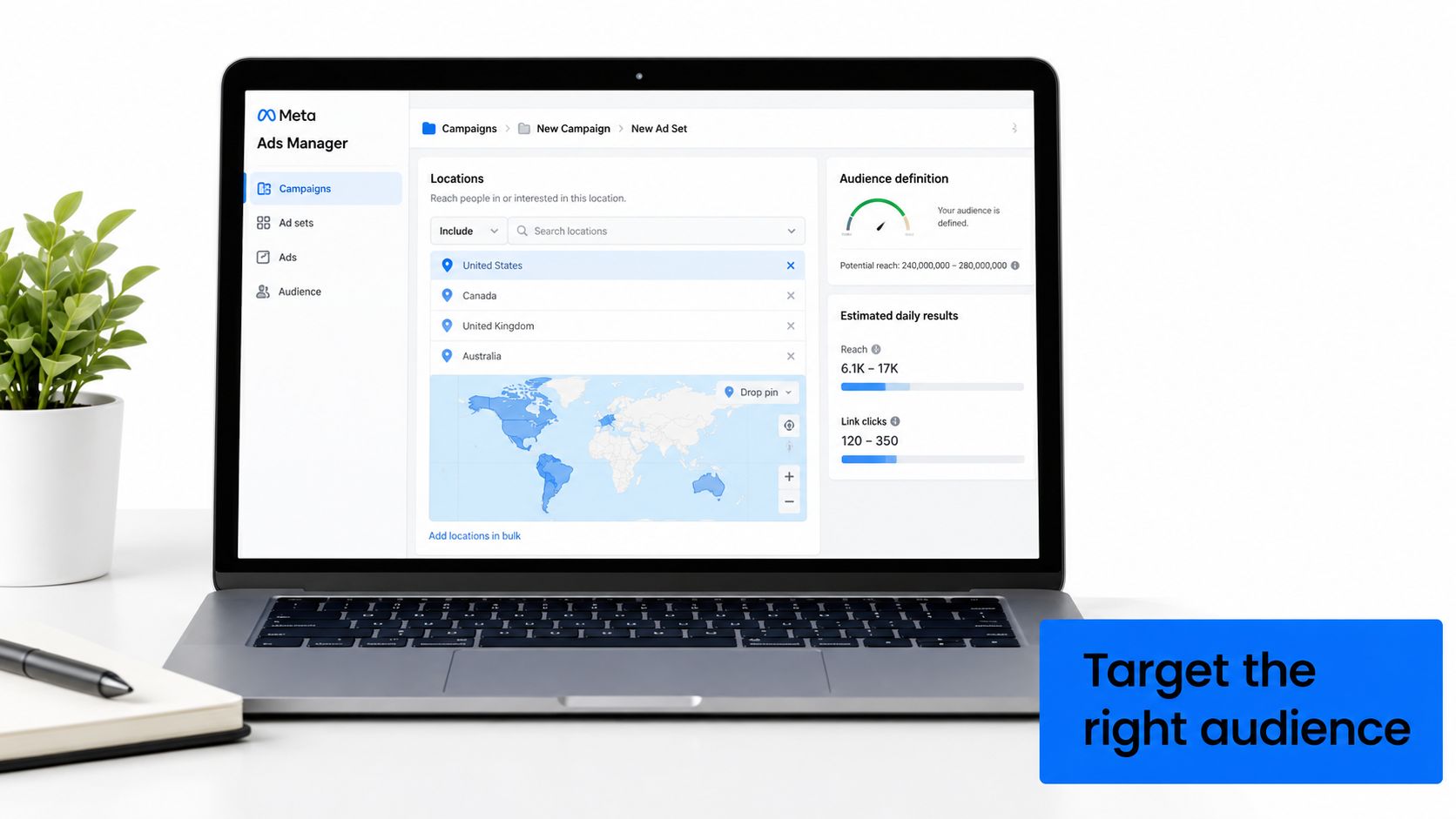
At the ad set level, open **Locations** and define the area the business can serve. Choose a city or broad postal-code cluster when the trade area follows local communities. Use a dropped pin or radius when the business serves customers around one operational base. If the trade area has an unusual shape, use the available map controls rather than forcing the campaign into a city boundary that includes places the team won't visit.
### Build the geography around service capacity
Separate major cities or postal-code clusters into distinct ad sets when each area needs different messaging, scheduling, or exclusions. Remove locations the business can't serve. If one suburb produces poor-fit inquiries, exclude it or move it into a separate test instead of letting it contaminate the whole campaign.
A six-study validation of social-media ad targeting found that city-level and broad postal-code targeting generally reached match rates in the **90% range**, with **97% across 1,244 targeted postal codes** in one result. The same research found that targeting only **12 postal codes** inside one city achieved a **52% success rate**, so the [research on validating social-media ad targeting](https://www.cambridge.org/core/journals/political-science-research-and-methods/article/missing-the-target-using-surveys-to-validate-social-media-ad-targeting/6D5793AD64168C6928F3B886F8A0C117) supports starting broader and validating before narrowing.
> **Local targeting test:** Calculate the in-area lead rate as valid local leads divided by total leads. Report it next to cost per lead, not hidden inside it.
Don't judge the ad set by impressions and clicks alone. Add a postal-code or city field to the landing page, verify the service address during SMS intake, and label each inquiry as in-area, borderline, or out-of-area. If the sample is too small to make a reliable decision, restructure the geography instead of treating an early result as proof.
After publishing, inspect delivery geography and lead addresses. If the campaign reaches the wrong region, adjust the pin, city, or postal-code structure before increasing budget. For a broader explanation of campaign setup and platform mechanics, read [what Meta advertising is](https://benjiads.com/blog/what-is-meta-advertising).
The following video can help operators orient themselves in the campaign interface:
## Fixing the Wrong or Missing Location Problem
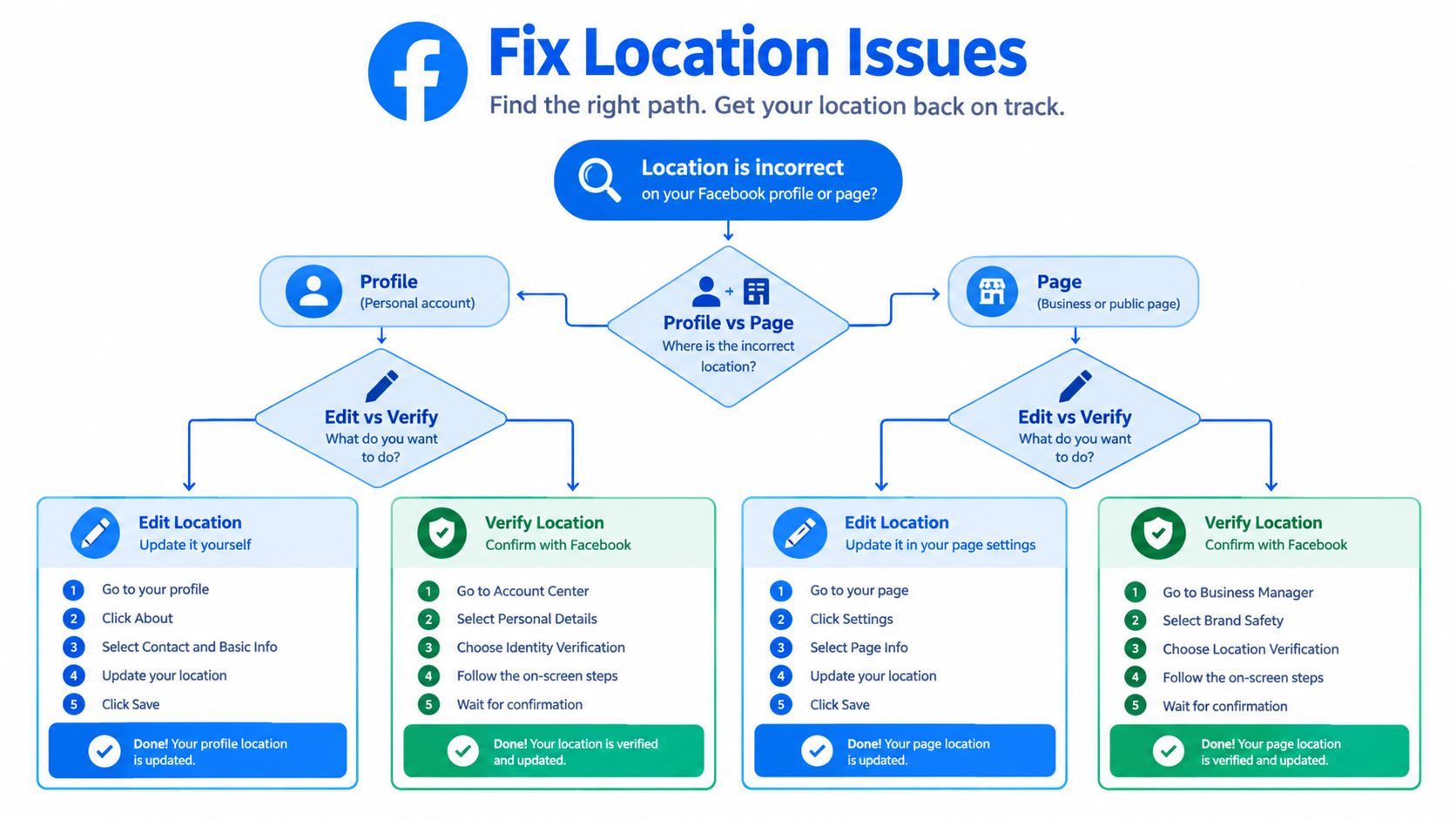
Treat a location problem as a decision tree, not a single GPS-permission issue. First identify what's wrong: a profile city, a Page address, a visible post tag, or ad delivery. Each one uses a different control.
### If the profile is wrong
Open the profile's About or personal information area and edit **Current city**. Confirm that the saved value changed publicly, then check that you didn't edit **Hometown** instead. If the location is missing, review the field's audience setting and whether the current Facebook interface displays it publicly.
### If the Page is wrong
Open Page settings and review the business address, map position, hours, and service-area information. Re-enter the address carefully if the pin lands on the wrong street. A map label can reflect Facebook's location database rather than the wording you typed, so compare the visible result with the actual customer-facing address.
If the address module doesn't appear, review the Page's business category and available Page setup options. Facebook's interface and eligibility can vary by Page, region, and account type, so don't assume a missing field means the account has a GPS problem.
### If ads appear in the wrong area
Inspect the ad set's selected city, postal codes, pin, radius, and exclusions. City names can be ambiguous, and a broad selection may include communities the business doesn't serve. Compare the ad set geography with the address submitted by each lead.
Facebook's location classification can use mobile-device information, IP address, and self-reported details. That means a person may appear local while traveling, using unusual network routing, or relying on an outdated profile. A correct phone GPS setting doesn't guarantee that every visible location label or advertising estimate will match it.
Use this verification sequence:
1. **Identify the feature:** Profile, Page, post, or ad delivery.
2. **Check the explicit field:** City, address, service area, or tagged place.
3. **Check the audience:** Confirm that the location is visible to the intended people.
4. **Check the campaign map:** Compare selected geography with the service boundary.
5. **Validate the lead:** Ask for city or postal code before booking.
## Operating Cadence and What to Stop Relying On
Local Facebook location settings need a routine because businesses change service areas, crews, branches, and booking priorities. A quick weekly review is more reliable than a large correction after a month of wasted inquiries.
On Monday, verify the Page address, map result, hours, and serviceable area. On Wednesday, review each ad set's cities, postal-code clusters, pin placement, and exclusions. On Friday, inspect tagged posts, check-ins, event activity, and lead addresses for signs that customers are associating the business with the wrong place.
Stop treating discontinued or outdated consumer features as dependable acquisition channels. Facebook announced in May 2022 that Nearby Friends, location history, and background-location functionality would stop collecting information on May 31, 2022, with previously shared location-history and background-location data scheduled for deletion by August 1, 2022, as reported in [TechCrunch's coverage of the shutdown](https://techcrunch.com/2022/05/09/facebook-to-shutter-its-nearby-friends-service-having-lost-the-friend-finding-market/). That feature history shouldn't be confused with current Page targeting, post tags, or advertising geography.
Use durable controls instead:
- **For presence:** Keep the Page address or service area accurate.
- **For reach:** Build ad sets around serviceable cities or broader postal-code clusters.
- **For content:** Tag the correct Page or place and check the post audience.
- **For measurement:** Capture the lead's city or postal code and compare it with booked work.
- **For operations:** Use a documented geography review rather than relying on memory.
A tool such as [Facebook Ads automation software](https://benjiads.com/blog/facebook-ads-automation-tool) can help organize campaign setup, reporting, and follow-up, but it can't make an inaccurate service area accurate. The durable controls remain the Page location, ad-set geography, explicit post tags, and lead verification.
---
BenjiAds builds and manages Facebook and Instagram campaigns for local service businesses, with landing funnels, location-based campaign setup, tracking, and SMS lead follow-up in one workflow. If you want to stop guessing whether Facebook inquiries come from your actual trade area, visit [benjiads](https://benjiads.com) and review how the platform can support your local lead process.